English Guides↗
To create a GST tax invoice, first confirm that your business is GST-registered, then record supplier GSTIN and address, invoice date and number, buyer details when required, item descriptions, taxable values, applicable GST rates and tax totals. Review the invoice before issue and keep records according to current requirements.
Read guide →English Guides↗
Good free billing software should make everyday invoicing quick and predictable, while also explaining exactly how customer records, stock, backups and supported devices work. Evaluate a working checkout demo, printer compatibility and recovery process before moving your business records.
Read guide →English Guides↗
GST billing generally refers to documents issued under applicable GST rules by a GST-registered supplier; a non-GST bill is a regular sales record without GST being charged. The correct document depends on the business’s registration and the nature of the supply—not just a toggle in billing software.
Read guide →English Guides↗
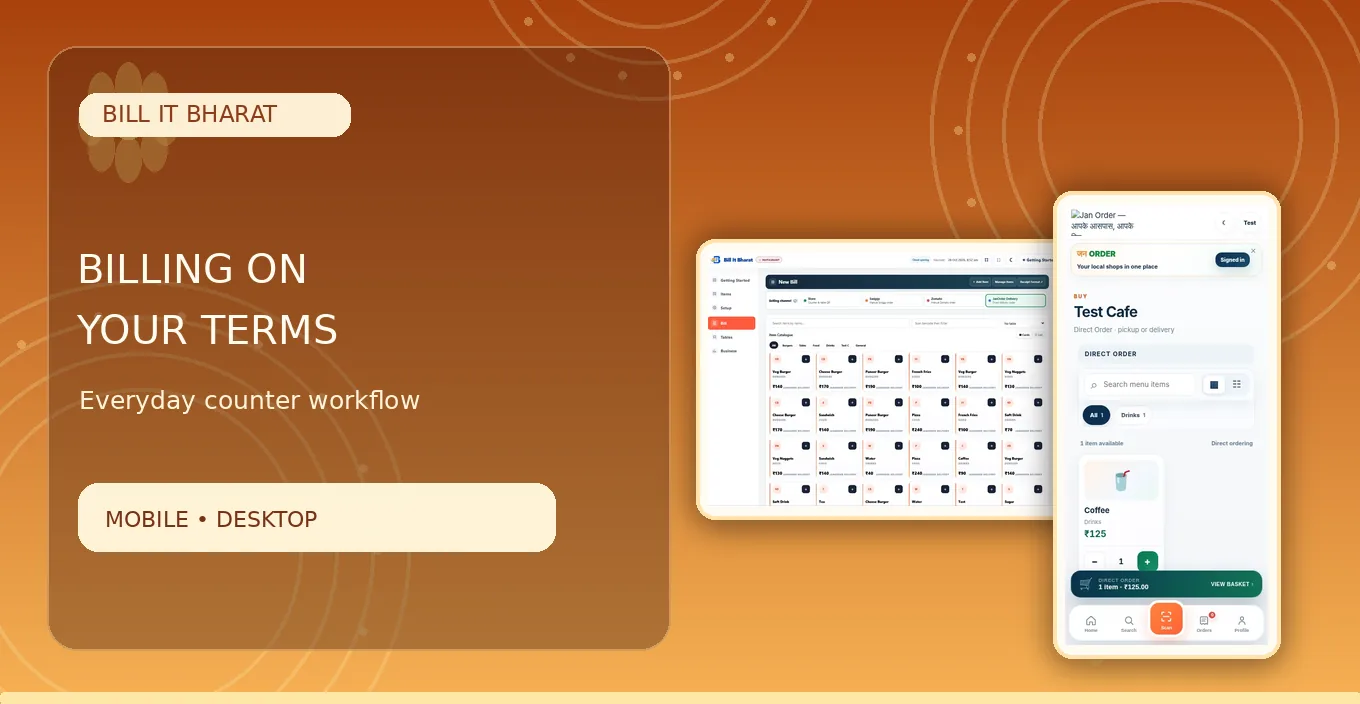
You can make a customer bill on a mobile phone by opening a browser-based billing application, setting up your business and items, selecting quantities and payments, and finalising a printable invoice. Confirm the phone, browser and printer combination before you depend on it during rush hour.
Read guide →English Guides↗
Manage kirana inventory by keeping a single accurate item master, recording opening stock, entering purchases and sales, checking physical stock regularly and correcting differences. Small daily habits reduce stock surprises more effectively than a complicated once-a-month count.
Read guide →English Guides↗
A small business can control its day by separating three records: what customers bought, what the business purchased from suppliers, and what cash or other payments were received. Connecting those records reduces forgotten deliveries and inaccurate margins.
Read guide →English Guides↗
Barcode billing lets the cashier identify the correct item quickly instead of searching a long list. It still needs a maintained item master, reliable scanner input and correctly mapped products, prices and units.
Read guide →English Guides↗
Set up restaurant QR ordering by configuring your food menu, creating table-specific or storefront QR links, testing the customer view, confirming where orders appear for staff, and printing durable QR cards. Always test the full journey before placing codes on every table.
Read guide →English Guides↗
A kitchen display system (KDS) shows food-order tickets on a screen so kitchen staff can view incoming work and update preparation status. It replaces some handwritten handoffs, but restaurants still need an agreed workflow for acceptance, preparation and serving.
Read guide →English Guides↗
A connected restaurant workflow starts with a diner scanning a QR menu, continues through order review and kitchen preparation, and ends with service and billing. Each stage needs a clear owner so kitchen status and payment status do not become confused.
Read guide →English Guides↗
Reduce restaurant ordering errors by standardising menu names, capturing orders in one workflow, displaying clear kitchen tickets, verifying special requests and making responsibilities explicit. QR menus and kitchen screens help only when configuration and staff handoffs are kept accurate.
Read guide →English Guides↗
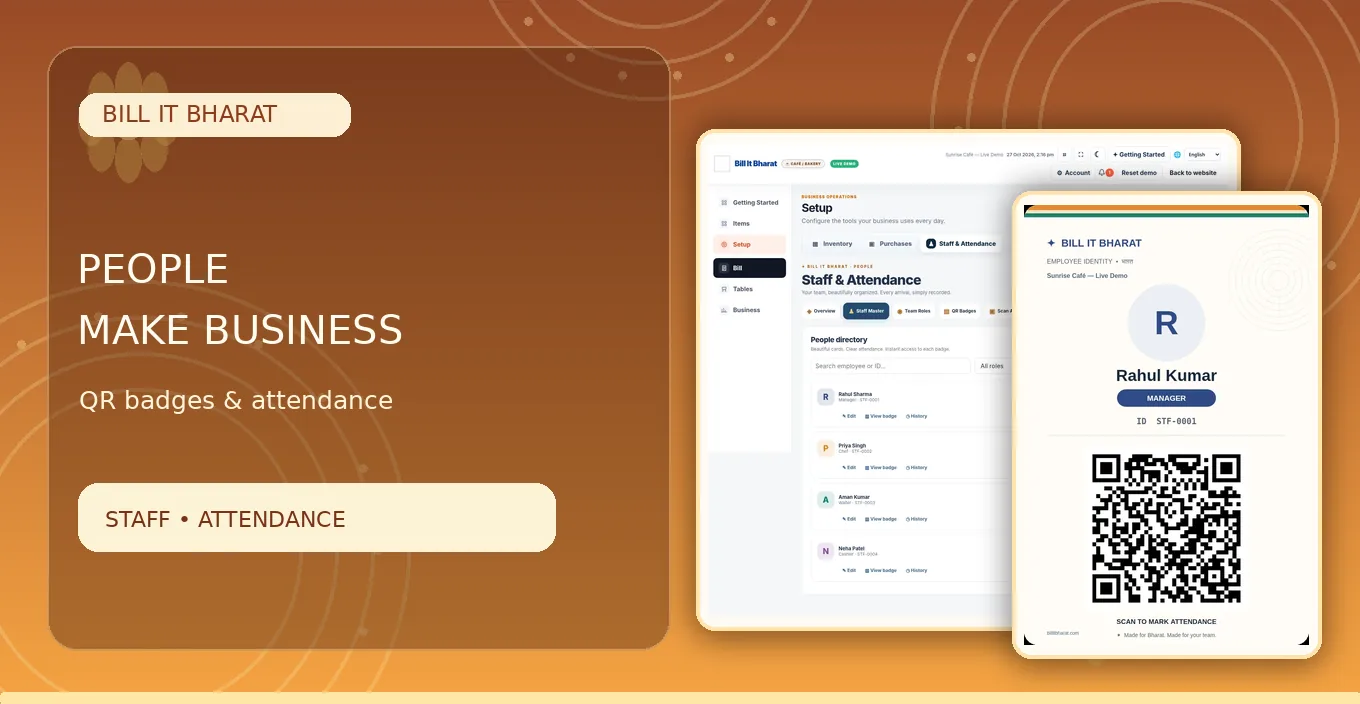
QR attendance lets staff scan an individual badge to mark arrival or departure at a shared attendance station. A useful setup includes employee identity, a scannable badge, the correct scan mode, accurate time records and a manager review process.
Read guide →English Guides↗
Managing a small shop team starts with clear roles, a reliable daily attendance method and a simple review of missed check-ins or check-outs. The system should be easy enough for the team to use without complicated HR software.
Read guide →English Guides↗
A small business benefits from one consistent product catalogue and connected routines for billing, purchases, suppliers, employee attendance and reporting. The goal is not to replace every specialist system, but to reduce avoidable switching between paper registers and scattered apps.
Read guide →English Guides↗
Manual billing can work for a very small number of simple sales, but software makes repeated item lookup, invoice formatting, transaction history and purchase tracking easier to organise. The right choice depends on shop volume, equipment and disciplined backups.
Read guide →हिंदी गाइड↗
मोबाइल से GST बिल बनाने के लिए पहले व्यवसाय की GST जानकारी भरें, सामान और टैक्स की सही जानकारी सेव करें, फिर Billing में आइटम चुनकर मात्रा, कीमत और टैक्स देखकर बिल बनाएं। GST बिल तभी जारी करें जब आपके व्यवसाय और बिक्री पर सही नियम लागू हों।
Read guide →हिंदी गाइड↗
दुकान का रोज़ का हिसाब रखने के लिए बिक्री, खरीद, सप्लायर, स्टॉक और भुगतान के रिकॉर्ड अलग लेकिन जुड़े हुए रखें। दिन के अंत में बिक्री और कैश मिलाएं, अधूरी एंट्री ठीक करें और बैकअप सेव करें।
Read guide →हिंदी गाइड↗
फ्री बिलिंग ऐप इस्तेमाल करने के लिए पहले बिज़नेस प्रोफाइल बनाएं, उदाहरण वाले आइटम चुनें या खाली शुरू करें, सामान की कीमत और टैक्स सेट करें, फिर एक टेस्ट बिल बनाकर चेक करें।
Read guide →हिंदी गाइड↗
किराना स्टोर में स्टॉक संभालने के लिए हर आइटम का नाम, यूनिट, श्रेणी, खरीद और बिक्री का रिकॉर्ड रखें। रोज़ तेज़ी से बिकने वाले सामान की गिनती मिलाएं।
Read guide →हिंदी गाइड↗
मोबाइल में Bill It Bharat खोलें, ग्राहक के लिए सामान चुनें, मात्रा और कीमत जांचें, भुगतान दर्ज करें और सेव करके बिल दिखाएं या प्रिंट करें।
Read guide →हिंदी गाइड↗
QR ऑर्डरिंग शुरू करने के लिए मेनू सेट करें, टेबल के लिए अलग QR बनाएं, ग्राहक के फोन से टेस्ट ऑर्डर भेजें और देखें कि ऑर्डर Command Center तथा किचन स्क्रीन में सही पहुंचा है।
Read guide →हिंदी गाइड↗
QR अटेंडेंस में मैनेजर कर्मचारी जोड़ता है, उसका QR बैज प्रिंट करता है और कर्मचारी आने-जाने पर बैज स्कैन करता है। जरूरत होने पर मैनेजर भूला हुआ चेकआउट भी दर्ज कर सकता है।
Read guide →हिंदी गाइड↗
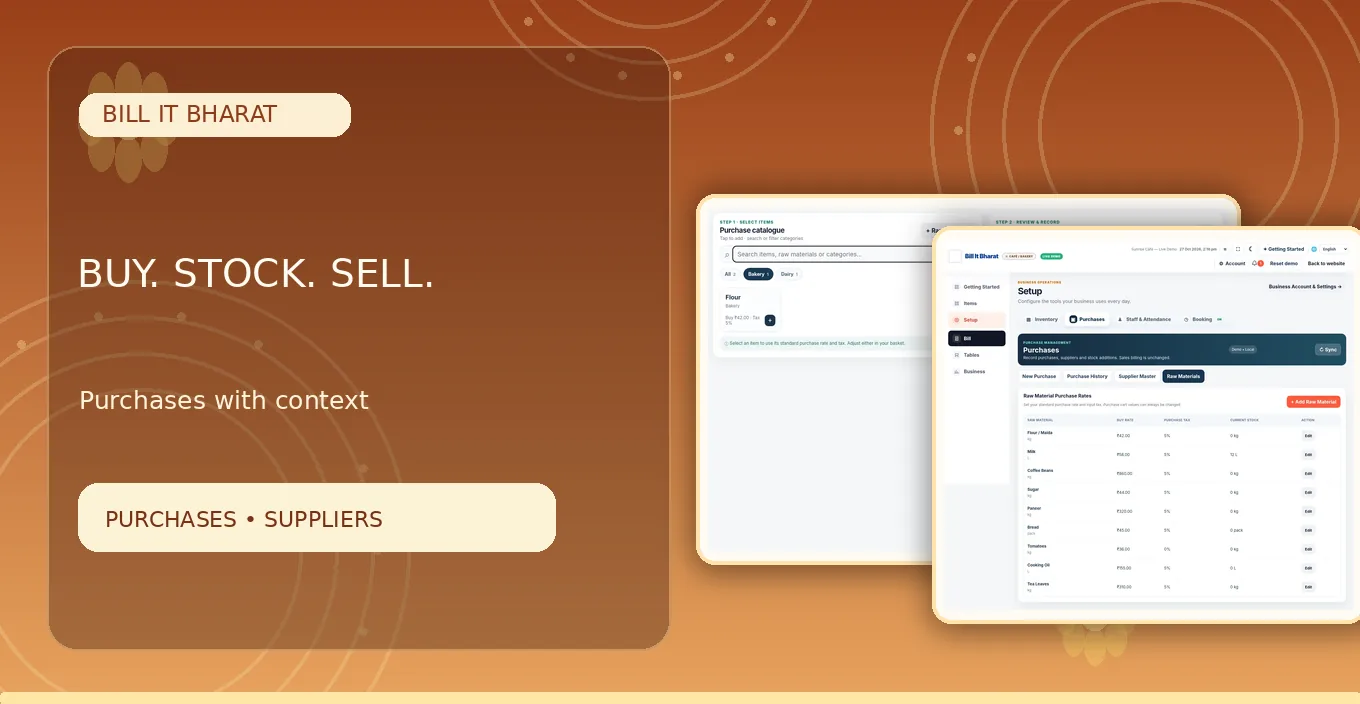
खरीद का रिकॉर्ड रखने के लिए सप्लायर जोड़ें, आए सामान की मात्रा, खरीद रेट और लागू टैक्स जांचें और Purchase में एंट्री सेव करें। बिक्री की रेट अलग रखें।
Read guide →हिंदी गाइड↗
अगर आपके पास कंप्यूटर नहीं है तो उपयुक्त स्मार्टफोन के ब्राउज़र से बिज़नेस सेटअप, आइटम सूची और बिलिंग की जा सकती है। पहले स्क्रीन, बिल प्रिंट और बैकअप की जांच जरूर करें।
Read guide →हिंदी गाइड↗
Bill It Bharat के उपलब्ध हिस्सों में हिंदी/अंग्रेज़ी भाषा विकल्प से इंटरफ़ेस समझने में मदद मिलती है। भाषा बदलने से बिज़नेस का डेटा या बिलिंग लॉजिक नहीं बदलना चाहिए।
Read guide →Demos↗
Add sample products, adjust quantities and preview a demo invoice; no signup or real sale.
Read guide →Demos↗
Place a fictional table order, review the kitchen ticket and complete preparation.
Read guide →Demos↗
Create a demo employee badge, clock in and check attendance without business records.
Read guide →Demos↗
Select a fictional supplier, record stock purchases and inspect the inventory result.
Read guide →Comparisons↗
Vyapar describes GST invoices, purchasing, inventory, accounting, payment follow-ups and extensive reports on its official feature pages.
Read guide →Comparisons↗
myBillBook lists invoicing, inventory, reports, bill recording, staff attendance/payroll and additional operational modules.
Read guide →Comparisons↗
Petpooja publishes restaurant-specific features including Scan & Order, purchase management, restaurant workflows and a broad app ecosystem.
Read guide →Comparisons↗
Compare by business need and verified published capabilities.
Read guide →Help Center↗
Prepare business name and contact details. Open the existing signup flow, authenticate, and complete the business-profile fields. Confirm the workspace opens before adding real transactions.
Read guide →Help Center↗
At first setup, select editable starter items to learn the interface or choose an empty catalogue. Open Items and verify your selection. Starter prices are examples, not guaranteed current selling prices.
Read guide →Help Center↗
Add at least one product, configure applicable tax details, open Billing, select the item, verify quantity and total, then save a sample bill. Open Sales History to confirm it exists.
Read guide →Help Center↗
Before enabling GST tax treatment, confirm registration and applicable rates. Configure your business and item tax information, then prepare a sample invoice and inspect the required fields.
Read guide →Help Center↗
Open Settings → Business & Billing Settings → Invoice Branding & Format. Choose among the available invoice designs, preview the appearance and save.
Read guide →Help Center↗
Use Sales History to find a saved bill and inspect the receipt. Export a current data backup from Settings to a safe location and verify the file was downloaded.
Read guide →Help Center↗
Open Setup → Items, choose a category quick filter, and search for an item by name. Switch between card/table views as supported.
Read guide →Help Center↗
Open the relevant Raw Materials master (food) or Item Purchase Rates master (trading). Save buying prices and purchase tax. Open Purchases to confirm those values fill automatically.
Read guide →Help Center↗
Create or select a supplier, add received products to the purchase basket, check units, buying rates, taxes and totals, then save. Verify in Purchase History and inventory as applicable.
Read guide →Help Center↗
Configure the restaurant menu, create a code linked to a specific table and scan it from a separate customer phone. Place a test order.
Read guide →Help Center↗
Generate the storefront on-site code in the current app, print a readable card and scan it at the counter. It should open on-site ordering without a required table number.
Read guide →Help Center↗
Place a small test QR order, review it in Command Center, inspect the corresponding kitchen ticket and move preparation through the configured statuses.
Read guide →Help Center↗
In Setup → Staff, create an employee and assign the role. Save and open the badge preview, then print or display the employee-specific QR.
Read guide →Help Center↗
Open the staff attendance kiosk with camera permissions. Choose the intended mode and scan a test badge while watching the confirmation.
Read guide →Help Center↗
In Staff Master find an employee still marked checked in and select Check out. Read the confirmation and complete the manager action.
Read guide →Help Center↗
Open Sales or Reports, select the relevant time period and compare transaction totals with your physical cash and payment records.
Read guide →Help Center↗
In Settings use Export Data (JSON) to download a file. Store it in a separate protected location. Learn the restore process in a test environment before needing recovery.
Read guide →Help Center↗
For the free workflow, use one primary billing device and download regular backups of local transaction records. Essential item and business masters may be cloud-backed; do not assume all historical bills automatically sync.
Read guide →No matches. Try another term or clear filters.