
Bill It BharatStart Free Billing
☰ Menu
Staff Management & QR Attendance

Add a staff member and generate a badge

In Setup → Staff, create an employee and assign the role. Save and open the badge preview, then print or display the employee-specific QR.

Real product orientation

See the application in context

A product screenshot to orient you before following the steps.

Explore a sample workflow →
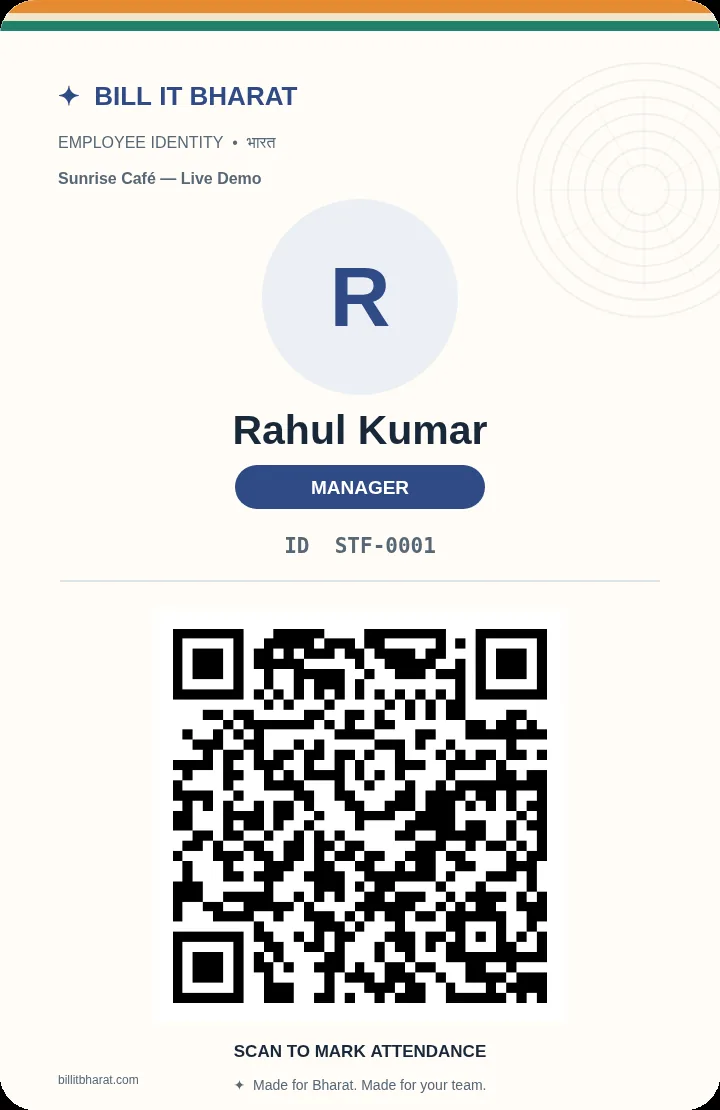
Sample printable employee badge made in the app.

Before you begin

Use the current Bill It Bharat application in a supported browser, open the relevant business workspace and confirm you have access to the section described.

Step-by-step

  1. In Setup → Staff, create an employee and assign the role.
  2. Save and open the badge preview, then print or display the employee-specific QR.

Expected result

The employee appears in Staff Master with a scannable badge.

If something does not work

No photo upload or manually supplied badge encryption key is required.

Need additional help? Contact support — do not email customer passwords or sensitive transaction records.

Make your business day simpler

Start with sample products or a blank item catalogue; configure your own business details before using real bills.

Start Free Billing →