
Bill It BharatStart Free Billing
☰ Menu
Inventory, Purchases & Suppliers

Set purchase cost and tax defaults

Open the relevant Raw Materials master (food) or Item Purchase Rates master (trading). Save buying prices and purchase tax. Open Purchases to confirm those values fill automatically.

Real product orientation

See the application in context

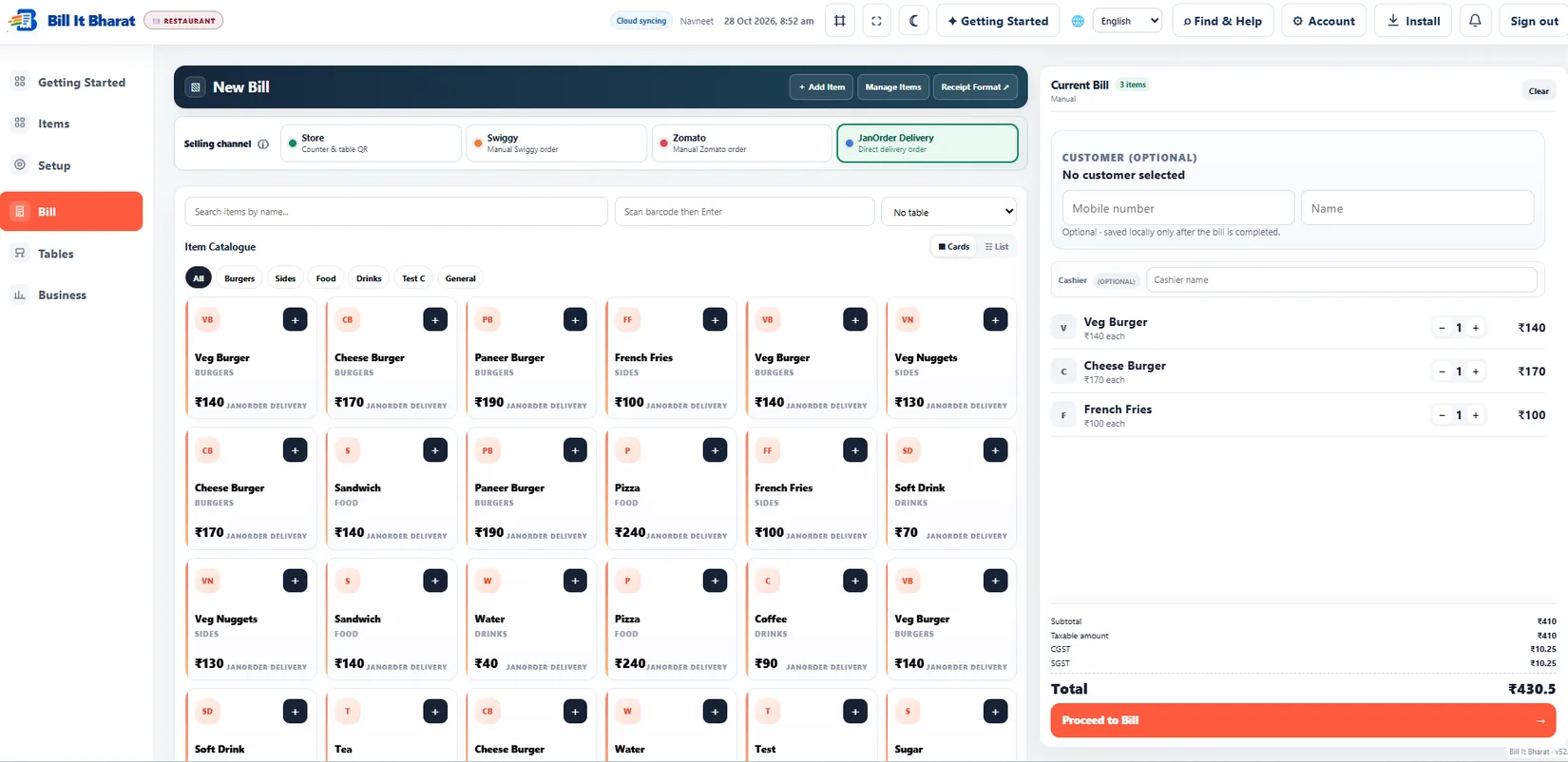
A product screenshot to orient you before following the steps.

Explore a sample workflow →
Actual counter-billing workspace, shown using sample data.

Before you begin

Use the current Bill It Bharat application in a supported browser, open the relevant business workspace and confirm you have access to the section described.

Step-by-step

  1. Open the relevant Raw Materials master (food) or Item Purchase Rates master (trading).
  2. Save buying prices and purchase tax.
  3. Open Purchases to confirm those values fill automatically.

Expected result

New purchase lines begin with the stored defaults and remain editable.

If something does not work

Sales GST and buying tax must not be assumed identical.

Need additional help? Contact support — do not email customer passwords or sensitive transaction records.

Make your business day simpler

Start with sample products or a blank item catalogue; configure your own business details before using real bills.

Start Free Billing →