
Editorial guide · 28 October 2026 · Examples for Indian small businesses
Choose a clear on-site ordering mode
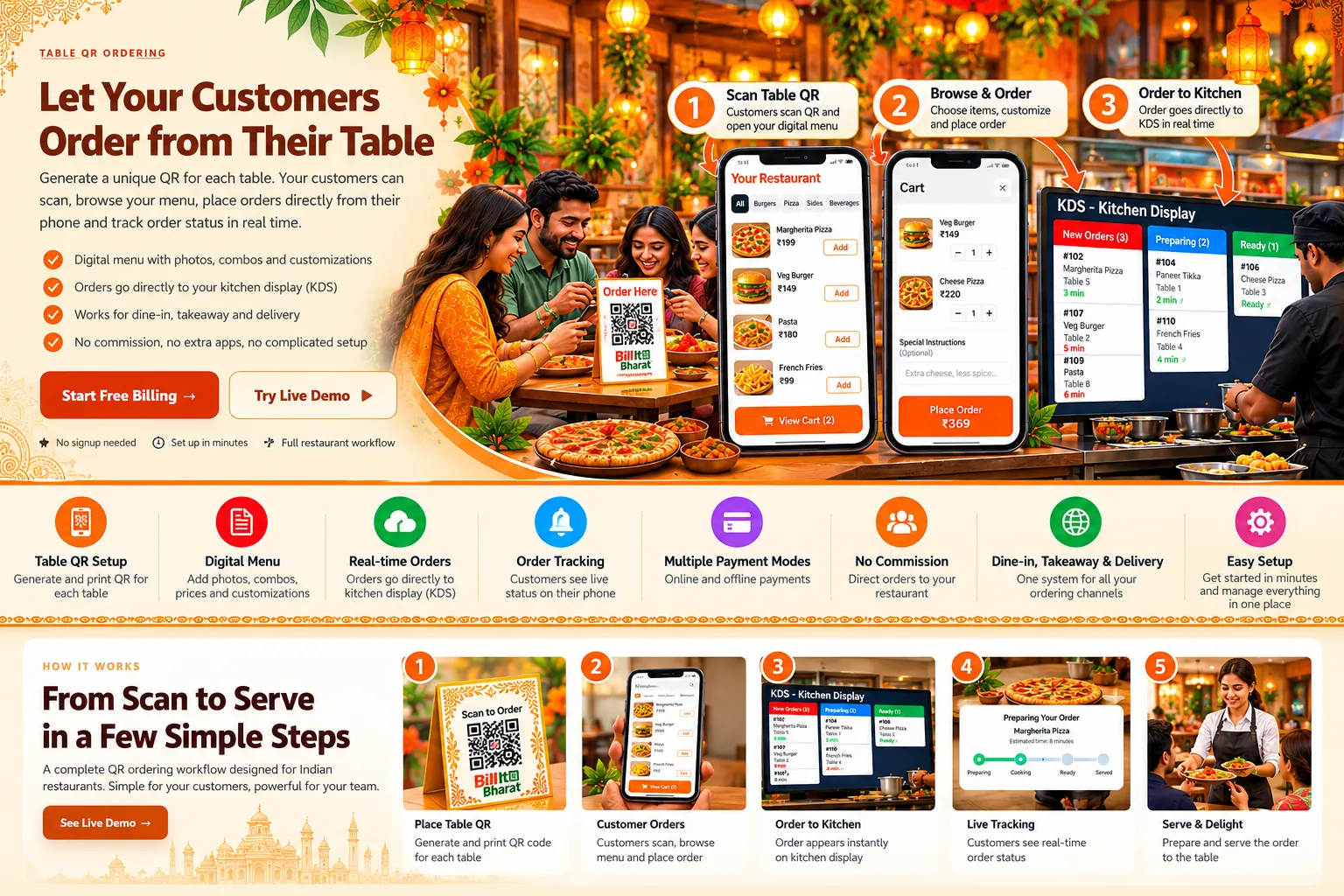
A table QR identifies the table where a diner is seated. A storefront on-site QR lets a visitor order without entering a table number. Both differ from a delivery order that asks where food should be delivered.
Select the code that matches the service journey. Avoid reusing a direct-delivery QR for seated diners.
Publish a concise menu
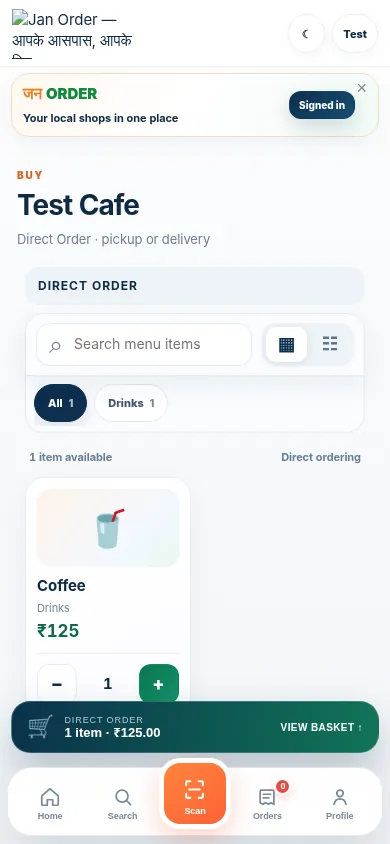
Check product names, selling prices, food variants and availability. Make commonly ordered categories easy to find on a phone.
If item photos are configured, verify they load before promoting the menu; ordering itself should not depend on images.
Test customer-to-kitchen handoff
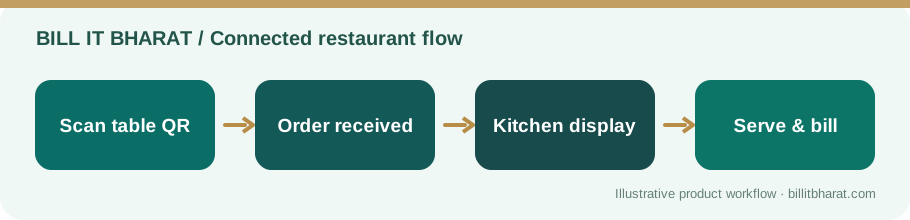
Scan with a second phone, place a small test order, confirm that it appears in Command Center, and inspect the KDS flow.
Check accept/reject, preparation and completion behavior in the current version rather than assuming order automation is enabled.
Print and maintain QR cards
Test QR readability in real restaurant lighting, avoid reflective laminates and choose a size customers can scan at normal distance.
If a storefront link changes, reprint affected physical codes to avoid leading customers into the wrong channel.
Test the physically printed QR, not only the URL
A working browser link is not the final acceptance test. Print the design at its intended size, place it at the actual table or counter, and scan with two different phone cameras. Check that the displayed menu, table attribution and downstream kitchen ticket match the physical location.
Example from a small business
A café places a table QR at Table 4 and a separate storefront QR at the takeaway counter, so dine-in and on-site counter orders can be clearly identified.
Quick start checklist
- Configure the menu and on-site ordering settings.
- Generate table or storefront QR codes.
- Scan from a customer phone and submit a test order.
- Verify the order in the staff/kitchen view before launch.
Frequently asked questions
Do customers install a special app?
No. A supported QR link opens a browser-based ordering interface.
Are delivery and table orders identical?
No. They follow distinct customer and fulfillment contexts.