
Editorial guide · 28 October 2026 · Examples for Indian small businesses
What the kitchen should see
A useful ticket shows item names, quantities, customer or table context when applicable, and a clear current state. Staff should immediately distinguish a new order from one already prepared.
Avoid relying only on sound alerts in a noisy kitchen. Visual labels and intentional status changes matter.
How KDS fits with QR ordering
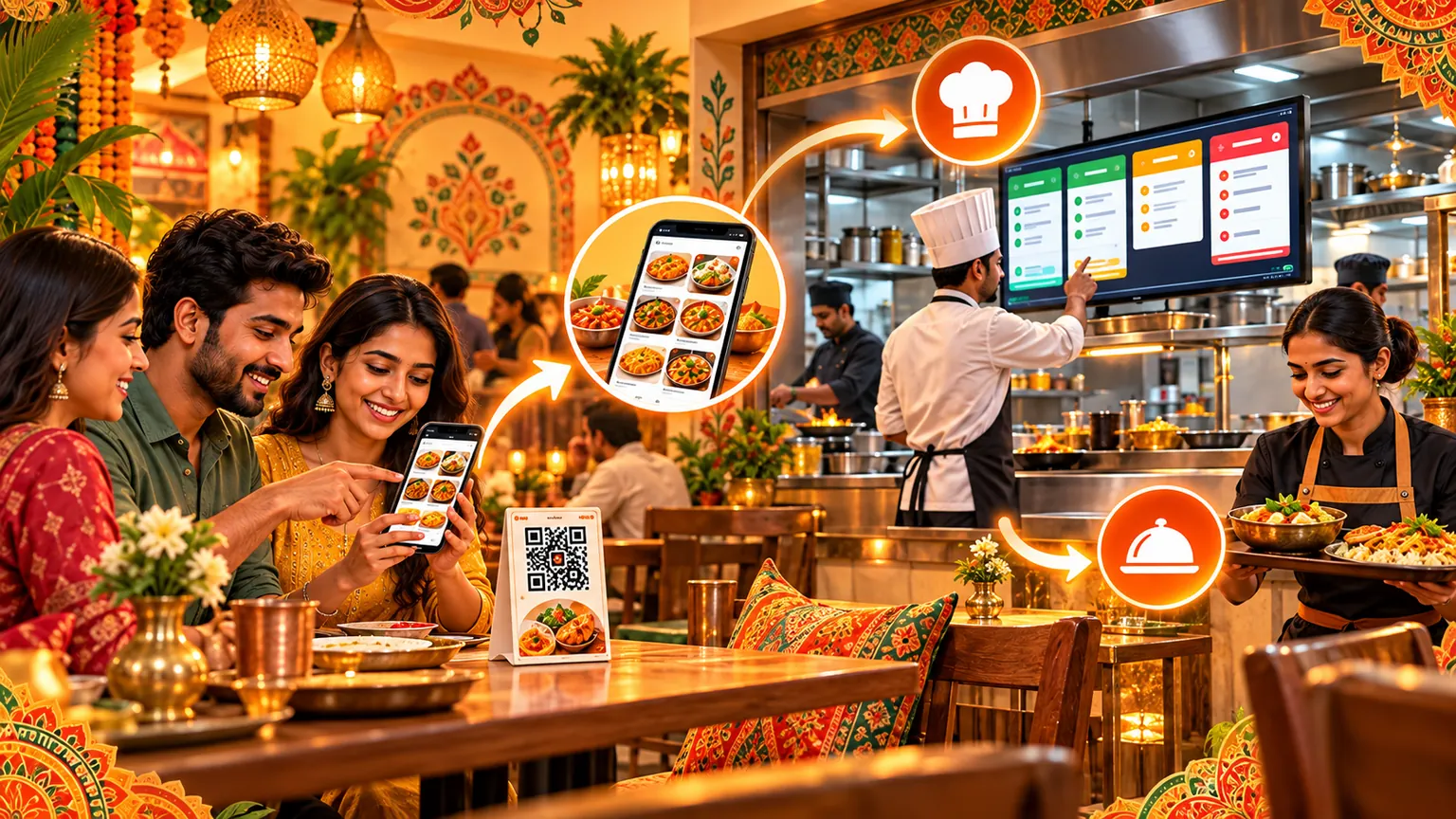
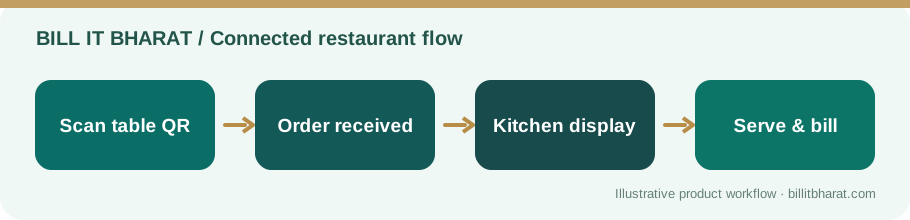
In a QR ordering setup, diners submit orders from their phones, the business handles the order, and eligible food orders reach the kitchen screen.
Bill It Bharat connects supported Table QR and on-site ordering flows with its kitchen display and Command Center.
Design a practical working rule
Agree on who accepts orders and who marks them ready. If several people share a screen, avoid marking tickets complete before food is physically finished.
Kitchen displays are operational tools, not a guarantee that an order is error-free. Review special instructions and customer clarifications.
How to run an opening test
Start a small test order with a beverage and food item, verify that both are visible, move preparation status and confirm the front counter receives the updated state.
Keep a fallback procedure for temporary internet or screen outages.
Separate kitchen state from service state
A ready dish can still be sitting at the pass; a completed kitchen ticket can still be unpaid. Define what “preparing”, “ready” and “completed” mean in your team and who may mark each transition. This prevents a green kitchen status from being mistaken for delivery to the customer.
Example from a small business
A quick-service kitchen receives one sandwich and one coffee; the display keeps the ticket visible while staff prepare it and mark it finished.
Quick start checklist
- Open the kitchen view before service.
- Place a test Table QR order.
- Check item lines and preparation state.
- Complete and confirm front-counter visibility.
Frequently asked questions
Does KDS issue tax invoices?
No. KDS coordinates food preparation; billing is a separate checkout step.
Can QR ordering connect to KDS?
Yes, in the supported and configured restaurant workflow.