Getting Started↗
Prepare business name and contact details. Open the existing signup flow, authenticate, and complete the business-profile fields. Confirm the workspace opens before adding real transactions.
Read guide →Getting Started↗
At first setup, select editable starter items to learn the interface or choose an empty catalogue. Open Items and verify your selection. Starter prices are examples, not guaranteed current selling prices.
Read guide →Getting Started↗
Add at least one product, configure applicable tax details, open Billing, select the item, verify quantity and total, then save a sample bill. Open Sales History to confirm it exists.
Read guide →Billing & Invoice Templates↗
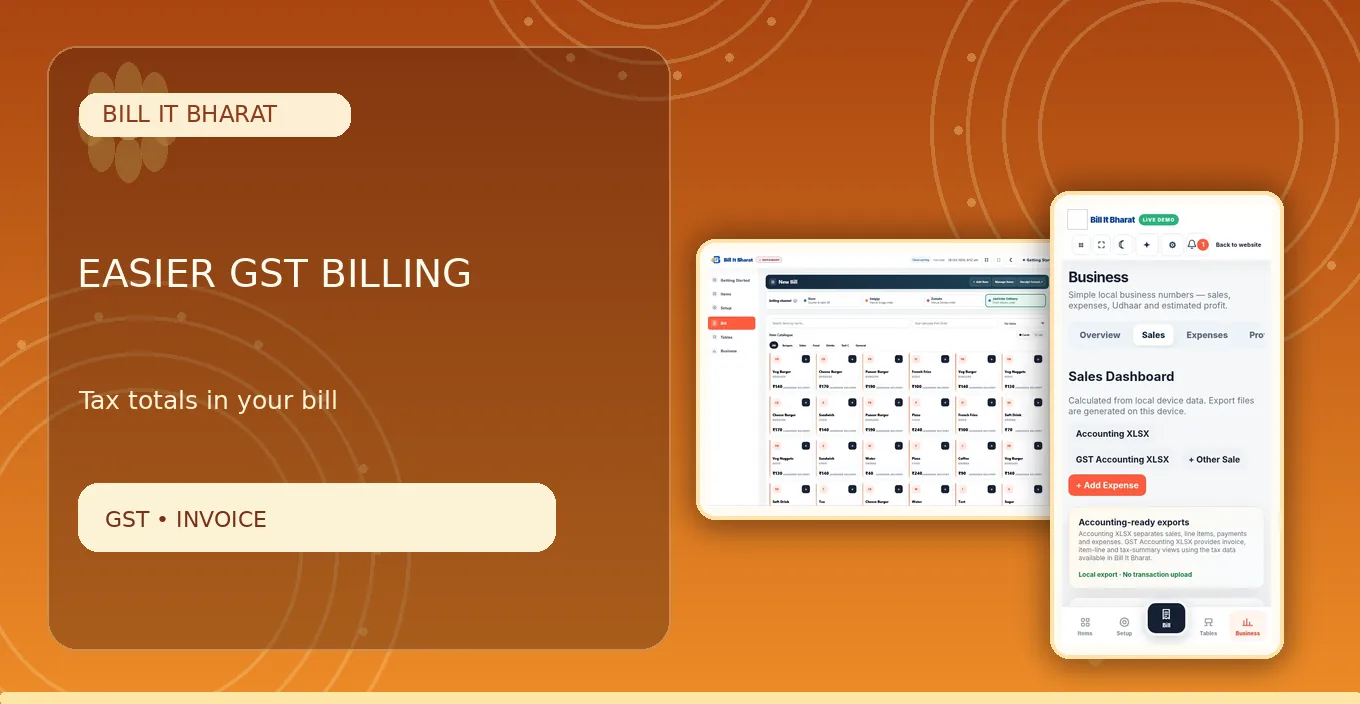
Before enabling GST tax treatment, confirm registration and applicable rates. Configure your business and item tax information, then prepare a sample invoice and inspect the required fields.
Read guide →Billing & Invoice Templates↗
Open Settings → Business & Billing Settings → Invoice Branding & Format. Choose among the available invoice designs, preview the appearance and save.
Read guide →Billing & Invoice Templates↗
Use Sales History to find a saved bill and inspect the receipt. Export a current data backup from Settings to a safe location and verify the file was downloaded.
Read guide →Inventory, Purchases & Suppliers↗
Open Setup → Items, choose a category quick filter, and search for an item by name. Switch between card/table views as supported.
Read guide →Inventory, Purchases & Suppliers↗
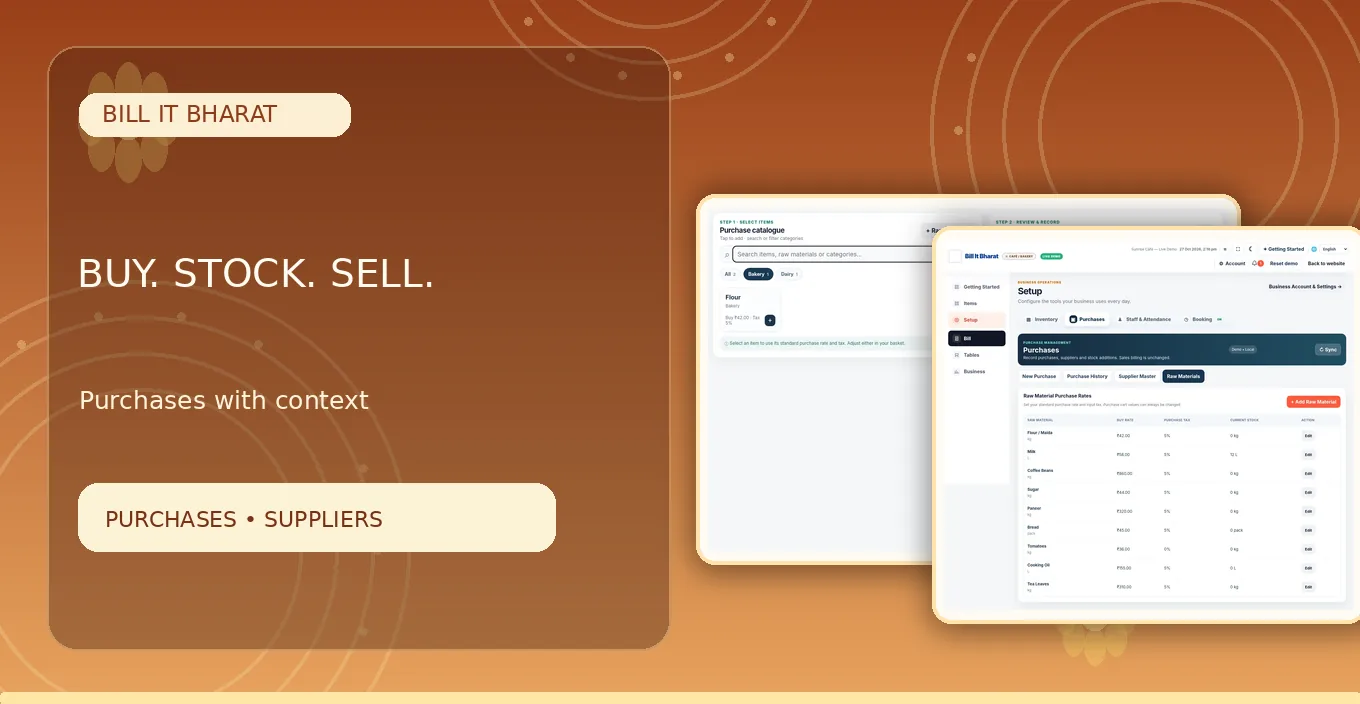
Open the relevant Raw Materials master (food) or Item Purchase Rates master (trading). Save buying prices and purchase tax. Open Purchases to confirm those values fill automatically.
Read guide →Inventory, Purchases & Suppliers↗
Create or select a supplier, add received products to the purchase basket, check units, buying rates, taxes and totals, then save. Verify in Purchase History and inventory as applicable.
Read guide →Restaurant QR Ordering & KDS↗
Configure the restaurant menu, create a code linked to a specific table and scan it from a separate customer phone. Place a test order.
Read guide →Restaurant QR Ordering & KDS↗
Generate the storefront on-site code in the current app, print a readable card and scan it at the counter. It should open on-site ordering without a required table number.
Read guide →Restaurant QR Ordering & KDS↗
Place a small test QR order, review it in Command Center, inspect the corresponding kitchen ticket and move preparation through the configured statuses.
Read guide →Staff Management & QR Attendance↗
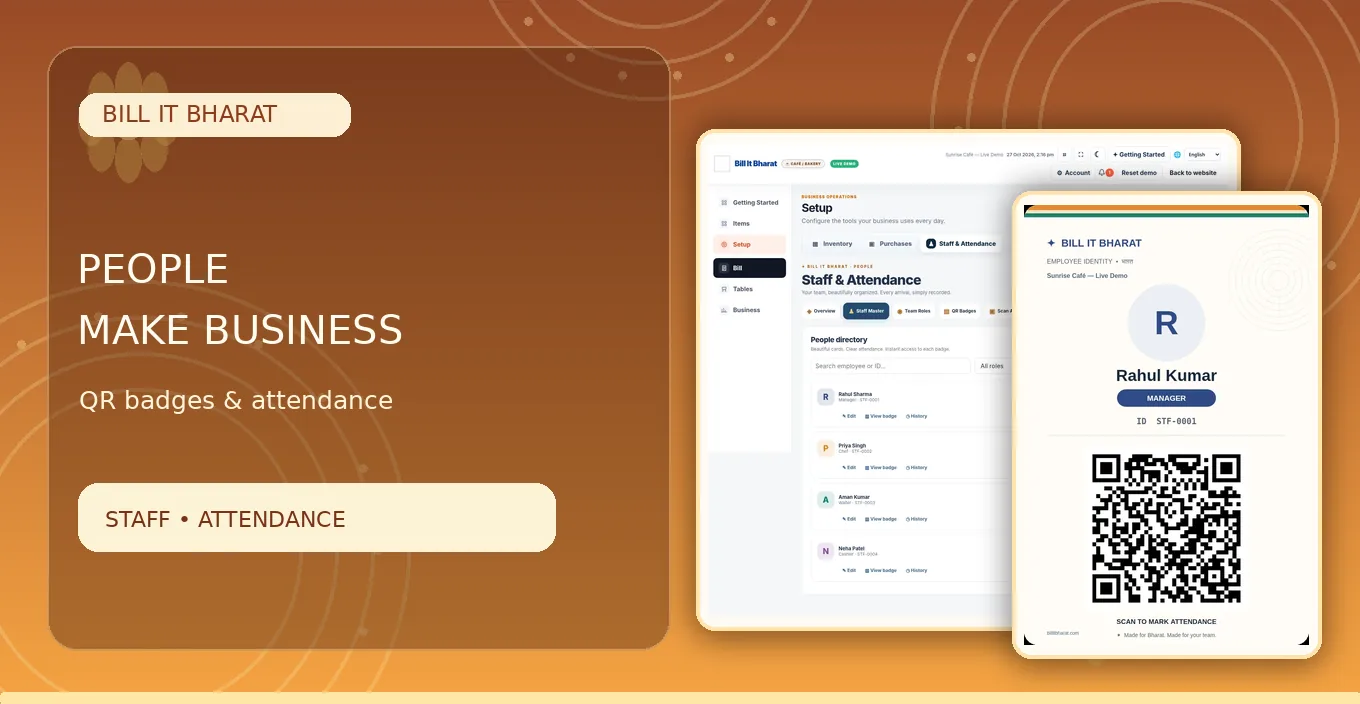
In Setup → Staff, create an employee and assign the role. Save and open the badge preview, then print or display the employee-specific QR.
Read guide →Staff Management & QR Attendance↗
Open the staff attendance kiosk with camera permissions. Choose the intended mode and scan a test badge while watching the confirmation.
Read guide →Staff Management & QR Attendance↗
In Staff Master find an employee still marked checked in and select Check out. Read the confirmation and complete the manager action.
Read guide →Reports, Settings & Cloud Backup↗
Open Sales or Reports, select the relevant time period and compare transaction totals with your physical cash and payment records.
Read guide →Reports, Settings & Cloud Backup↗
In Settings use Export Data (JSON) to download a file. Store it in a separate protected location. Learn the restore process in a test environment before needing recovery.
Read guide →Reports, Settings & Cloud Backup↗
For the free workflow, use one primary billing device and download regular backups of local transaction records. Essential item and business masters may be cloud-backed; do not assume all historical bills automatically sync.
Read guide →No matching tutorials. Try another term.