
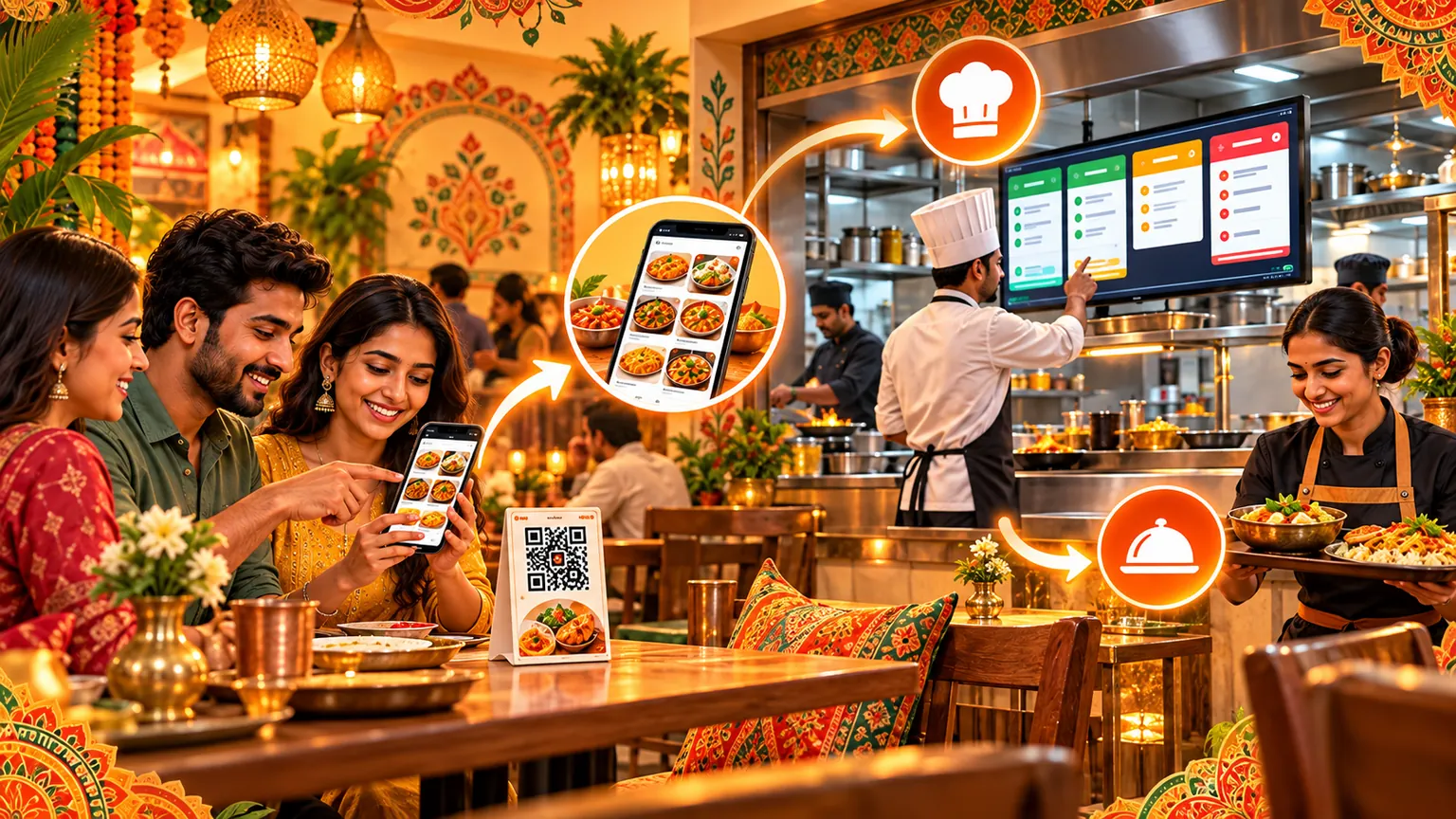

Editorial guide · 28 October 2026 · Examples for Indian small businesses
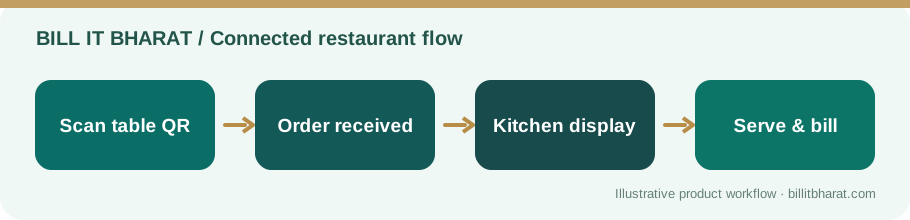
1. Place the correct QR code
For table service, the code should identify the table. For a counter or storefront, use the supported on-site ordering link.
Do not call every customer order “direct delivery”; different order sources should be labelled clearly in Command Center.
2. Review the incoming order
Staff should confirm order origin, items, quantities and any customer-provided notes using the existing acceptance process.
A QR submission is a request entering the operation, not necessarily a completed sale or finished bill.
3. Prepare using the KDS
Kitchen staff follow visible tickets and change preparation status as work progresses. Keep the screen visible at the station actually preparing the items.
When the order is ready, ensure the relevant team knows whether to serve it at a table or hand it over at the counter.
4. Complete billing and daily records
Bill according to the business’s configured workflow and record the accepted payment method. Confirm the final bill matches what was supplied.
Review sales and order-channel data at close. A status change in KDS must not be treated as proof of payment.
Reconcile the order with the final bill
After a sample kitchen ticket is ready, compare the served items with the items on the final bill. If a customer added another dish mid-meal, ensure the new order was accepted and tracked under the correct customer/table context before settlement. The order channel helps investigation but does not replace reconciliation.
Example from a small business
A diner at Table 2 orders two coffees. The order enters the restaurant queue, the kitchen prepares it, a server delivers it and the business completes the bill.
Quick start checklist
- Scan Table QR or storefront QR.
- Submit a sample menu order and review it in Command Center.
- Track kitchen preparation and mark food ready.
- Serve the order and follow existing billing workflow.
Frequently asked questions
Does kitchen completion automatically mean payment?
No. Kitchen preparation and payment are separate operational steps.
Can staff identify table versus on-site orders?
The Command Center distinguishes supported order-source labels.